


Scan Shot: PDF & Photo Scanner
4.4913.00 Reviews
App Specs
- Version
- 2.10.0.10221
- Updated On
- License
- Free
- Downloads
- 1,000,000+
- Developer
- KAERMORHEN, S.L
- Categories
- Productivity
- Platform
- Android, iOS
Screenshots
 Analysis by AppCompare
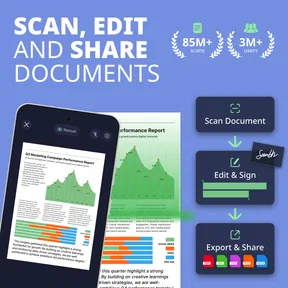
I tend to judge a mobile scanner by what happens when I need it at an inconvenient moment: a form arrives on paper, I’m away from a desk, and the next step depends on turning that page into a file I can actually use. Scan Shot - PDF Scanner App is built for that sort of quick task. It’s a free productivity app from KAERMORHEN, S.L, and its appeal is straightforward: capture paperwork with a phone, tidy it up, and keep the result in PDF form.
That simple workflow is also where connectivity matters. Taking a picture of a page is only part of the job; sharing, saving to a cloud service, or sending a document onward may rely on having a usable connection. I find it helps to think of Scan Shot as a pocket document tool rather than a full replacement for every office workflow. It is most useful when the phone is already in your hand and you need to move a paper document toward its next destination.
Where the connection becomes part of the workflow
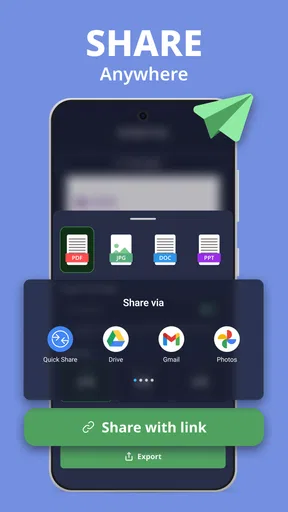
The first part of scanning is naturally local to the moment: position the paper, capture it, and check the result. The network becomes more relevant when I want to send or store that result elsewhere. Scan Shot offers sharing by email and saving to services such as Google Drive and Dropbox, so the handoff can be convenient when those services are available and I’m signed in as needed.
I wouldn’t treat a successful scan as proof that it has already reached a cloud folder. My practical habit is to check the destination after sending, especially if I’m on weak public Wi-Fi or switching between mobile data and Wi-Fi. That small verification step matters when the document is time-sensitive; the PDF on the phone and a copy safely in a remote account are two different stages of the task.
The app also includes a fax option, which may help when a recipient still expects a fax rather than an email attachment. That is a different kind of handoff from simply keeping a scan on the device, so I’d use it only when the destination and connection are ready. For a routine form, I usually prepare and review the pages first, then send once I know exactly where they need to go.
Useful in the places people actually scan
Scan Shot makes the most sense in mobile settings: a student collecting notes after class, someone saving a receipt before it fades into a bag, or a worker asked to return a signed page while away from the office. It can also help with a whiteboard or handwritten note when a quick image is more useful than trying to recreate the information later.
One realistic example is dealing with a paper form during a commute between appointments. I can capture the pages, check that the edges and text look right, add a signature if needed, and then share the finished file when I have a reliable connection. The important part is not to rush past the review: glare, a curled corner, or a page photographed at an angle can make a scan harder to read even when the app has detected the document.
Worth Reading Before You Choose

EA SPORTS FC Mobile 26 Is a Bigger Football Game, but It Takes Time

Flipboard Shows What News Apps Must Do Beyond the Feed

Switching to Android Auto Means Rethinking Your Driving Routine

Google Calendar Makes a Crowded Week Easier to Manage

Ludo King Makes the Most of the Minutes Between Plans

Baby Panda World Brings Quick Play to Modern Phones, but Its Game Library Feels Busy
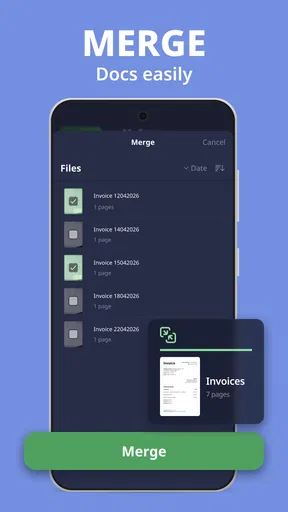
For multi-page paperwork, I’d group related pages into one batch and inspect them before sending. That reduces the chance of mixing a receipt into a form or overlooking a page that was captured poorly. It is a small organizational step, but it makes the resulting PDF easier for the recipient to follow and easier for me to find later.
What to do when a handoff does not go smoothly
A mobile workflow can be interrupted by an unstable connection, an app switch, or a destination account that is not ready. If a share or cloud save appears uncertain, I’d avoid repeating the whole scan straight away. First, check whether the document is still available in the app and whether the receiving service shows a copy. That prevents duplicate submissions and avoids spending time recapturing pages that are already clear.
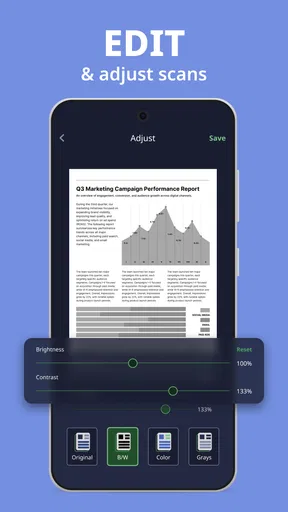
If a page itself is the problem, the fix is different: inspect the crop, brightness, and contrast, then recapture or adjust the page before trying to send it again. Automatic edge detection is helpful, but it is not a substitute for looking at the corners and the text. I find this quick quality check more valuable than assuming every camera capture is ready to file.
For work that cannot be delayed, I’d make sure the finished document has reached its intended destination before closing the task. That is especially sensible for signed forms or anything with a deadline. A scanner app can make capture and preparation faster, but the user still has to confirm the last step of delivery.
Keeping document handling deliberate
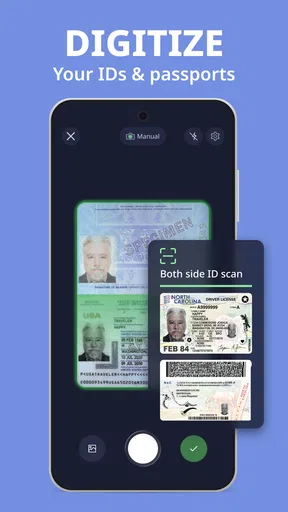
Receipts, identification paperwork, contracts, and personal forms do not all deserve the same sharing habits. I’d scan only what I need, name or sort documents in a way I can recognize later, and choose the destination before sending. Folders can help separate school, household, and work files, while a final page-by-page check can catch accidental extras before a document leaves the phone.
Scan Shot presents secure storage and safe sharing as part of its approach, but I still use ordinary care with sensitive paperwork: send only to the intended person or account, and avoid treating a convenient share option as a reason to distribute a document more widely. The app’s editing and signature tools can make a file ready to submit, but the user remains responsible for checking its contents and recipient.
It is also worth thinking about ongoing use rather than just the first scan. The app is free to install, with in-app purchases listed from $6.99 to $49.99 per item. I’d try the basic workflow first and decide whether any paid option fits a recurring need, rather than paying before knowing how often I’ll scan, sign, or send documents. The age rating is Everyone, and the app’s current version is 1.26.2.5051, with Android 8.0 as the minimum operating system.
First Impressions and Setup
Jumping into the world of Scan Shot - PDF Scanner App was surprisingly smooth. The installation process was a breeze—quick download and you’re ready to roll. As soon as you launch the app, you're greeted with a clean and intuitive interface. I’m all about apps that don’t require a deep-dive into user manuals to figure out.
The app promises to turn your phone into a high-quality scanner, and my first thought was, "Let's see if it delivers." Spoiler alert: it did.
Scanning Features
Now, onto the meat of the app—scanning. You can scan documents, receipts, notes, and even whiteboards with surprising accuracy. The app uses your camera to capture the document, and then it works its magic to enhance and optimize the image. It’s like having a tiny scanner tucked into your pocket.
One feature I found particularly nifty was the automatic edge detection. The app smartly recognizes the edges of your documents, making it easy to crop and adjust. No more fiddling around trying to get the perfect alignment manually. And the quality? Top-notch. The scanned documents are clear and sharp, which is exactly what you need when you're dealing with important paperwork.
Editing and Managing Documents
Editing capabilities are where Scan Shot shines. The app allows you to tweak your scans, adjusting brightness and contrast to get the perfect look. There's also a batch processing feature, which is a lifesaver when you're scanning multiple pages. You can even create folders to keep everything organized, which adds a layer of ease to document management.
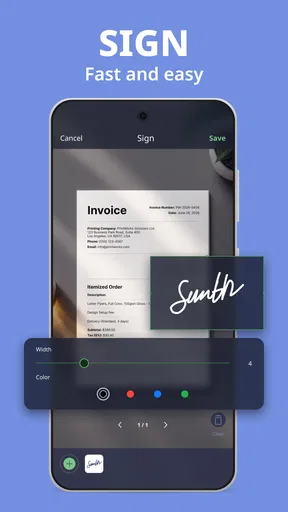
One little feature that caught my eye was the ability to add signatures. Whether you're signing contracts or just need a quick endorsement, this feature is a game-changer.
Sharing and Connectivity
Once you’ve scanned and edited your documents, sharing them is a breeze. The app provides options to share via email or save directly to cloud services like Google Drive and Dropbox. This connectivity ensures your documents are always within reach, no matter where you are.
Need to send a quick fax? Yep, the app can handle that too. It's like having a mini office in your pocket, and I found it incredibly convenient for on-the-go business needs.
User Experience and Design
I’m a sucker for well-designed apps, and Scan Shot didn’t disappoint. The user interface is sleek and straightforward, ensuring that even the least tech-savvy among us can navigate it with ease. The buttons are clearly labeled, and the overall design feels modern and responsive.
One of the standout aspects of this app is its speed. Scanning and processing documents is quick, saving you precious minutes when you're in a rush. Plus, there’s no annoying lag or crashes, which is a huge plus in my book.
Security and Privacy
In our digital age, security is a big concern, and Scan Shot addresses this head-on. The app promises secure storage and safe sharing of documents. Knowing that my documents are protected gives me peace of mind, especially when dealing with sensitive information.
Before I rely on any scanner for important paperwork, I try a low-stakes document first. That lets me get comfortable with the capture, crop, and share sequence without risking a rushed mistake on something sensitive. A practice page also helps me find a comfortable lighting angle and see how much correction a typical page needs. With receipts, I avoid stacking them or placing them over patterned surfaces; a clear, flat background makes it easier to inspect the captured edges and read the small print.
Choosing it over the usual alternatives
For a one-off scan, the phone’s built-in camera may be enough if I only need a reference image. The difference with a dedicated scanner app is the document-focused workflow: edge detection, image adjustments, multi-page handling, folders, and a path toward sharing a PDF. That is useful when the file has to look like paperwork rather than a casual photo. On the other hand, a physical scanner is still the better choice for large stacks, repeated office batches, or situations where consistent handling matters more than portability.
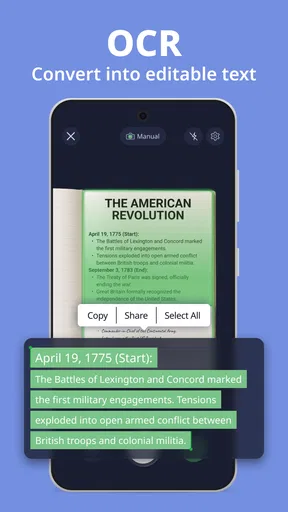
Compared with typing notes or rebuilding a form digitally, a scan preserves the page as it is, including its layout and handwriting. That can be exactly what a recipient needs, but it also means poor handwriting, faint ink, or a cramped page remains part of the image. I would not choose a camera scan as a substitute for an accessible, searchable document when those properties are essential. Scan Shot is strongest when the goal is a readable, shareable visual copy, not when the paper needs to become perfectly editable text.
Small habits that make scans more dependable
For a signed document, I prefer to capture the unsigned pages first, review the order, and add the signature only after I know the correct version is assembled. That avoids signing a page and then discovering that I missed an attachment or captured a duplicate. For receipts, I check the date and total at a comfortable zoom before filing; a scan that looks fine as a thumbnail may not preserve the detail I need later.
Another useful trade-off is whether to batch pages or save them separately. A single PDF is easier to send when pages belong to one form or agreement. Separate scans are easier to sort when papers have different purposes, such as several unrelated receipts. I’d make that decision before capture rather than trying to untangle a mixed batch afterward. Folders then help with retrieval, but a simple naming habit still matters: “travel receipt” is more useful to me later than a generic scan label.
Who will get the most from it
I’d recommend Scan Shot to people who deal with occasional paperwork away from a desk: students submitting signed pages, freelancers returning forms, households keeping receipts, or anyone who needs to send a clear copy without finding a printer-scanner. It has a 4.5 average from around 125 thousand ratings, and it has passed one million installs, which suggests it has found an audience among people looking for this kind of mobile utility. It was released on June 3, 2022, and its simple premise remains practical for everyday document chores.
I’d be more cautious if scanning is a daily, high-volume part of your job, if you need dependable text extraction or heavy document automation, or if every file must move through a controlled workplace process. In those cases, a dedicated office scanner or a specialist document-management workflow may be a better fit. Scan Shot’s convenience is real, but convenience does not remove the need to review pages, confirm delivery, and follow the rules that apply to the documents you handle.
Final Thoughts
Overall, Scan Shot - PDF Scanner App has impressed me with its functionality and ease of use. It’s a powerful tool that combines essential scanning features with a user-friendly design. Whether you’re a student, a professional, or just someone who needs a reliable scanner, this app ticks all the boxes.
So, the next time you find yourself needing to scan a document, give Scan Shot a try. You might just find it becoming an indispensable part of your mobile toolkit.
My connectivity verdict
What I value most is the short path from paper to a prepared file: capture, correct, organize, then choose how to share it. The connection is not the whole experience, but it determines how smoothly that last handoff happens. I’d use Scan Shot for occasional, practical document tasks and keep a brief check-in habit around cloud saves, email, or fax delivery.
If that matches the way you handle paperwork, it is an easy app to consider. If you need a guaranteed business archive, searchable text, or a high-volume scanning station, I’d choose a more specialized setup instead. For everyday mobile scanning, the balance is appealing: quick capture on the phone, useful adjustments, and enough organization to turn a pile of loose pages into a file I can send and find again.
Pros
- Fast and efficient document scanning.
- High-quality PDF export options.
- Easy-to-use interface.
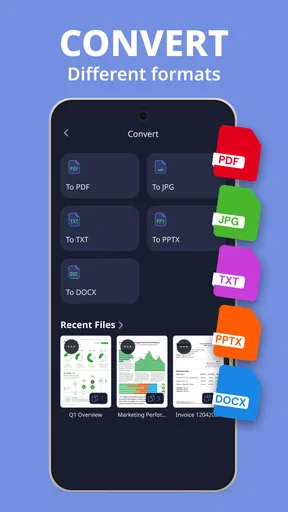
- Supports multiple file formats.
- Secure cloud storage integration.
Cons
- Contains in-app advertisements.
- Limited features in free version.
- Requires account for cloud sync.
- Occasional OCR errors.
- No batch processing in free version.
FAQs for Scan Shot: PDF & Photo Scanner
What features does Scan Shot - PDF Scanner App offer?
Scan Shot offers a variety of features including high-quality document scanning, OCR (Optical Character Recognition) for text extraction, and the ability to save files in multiple formats such as PDF and JPEG. Users can also easily share documents via email or cloud services, making it a versatile tool for both personal and professional use.
Is Scan Shot - PDF Scanner App free to use?
Scan Shot provides a free version with basic features suitable for occasional use. However, for access to premium features such as OCR, advanced editing tools, and cloud storage integration, users may need to purchase a subscription. This allows for a more comprehensive document management experience.
How does Scan Shot ensure the security of scanned documents?
Security is a priority for Scan Shot. The app employs encryption to protect your documents during storage and transmission. Users can also set passwords for sensitive files, ensuring that only authorized individuals can access them. Regular updates help maintain the app’s security standards.
Can Scan Shot handle multiple languages in OCR?
Yes, Scan Shot’s OCR functionality supports multiple languages, allowing users to extract text from documents in various languages accurately. This feature is especially useful for international users or those working with multilingual documents, enhancing the app’s versatility and appeal.
Does Scan Shot work offline?
Scan Shot is designed to function offline, allowing users to scan and save documents without an internet connection. This feature is particularly beneficial for users who need to work in areas with limited connectivity. However, features like cloud storage and sharing require an internet connection.


